ArrivesBy Blog
Delivery Estimates Now Personalized for Canada, Australia & New Zealand
ArrivesBy's geolocation feature — which shows shoppers a delivery estimate based on where they actually are — now supports Canada, Australia, and New Zealand.
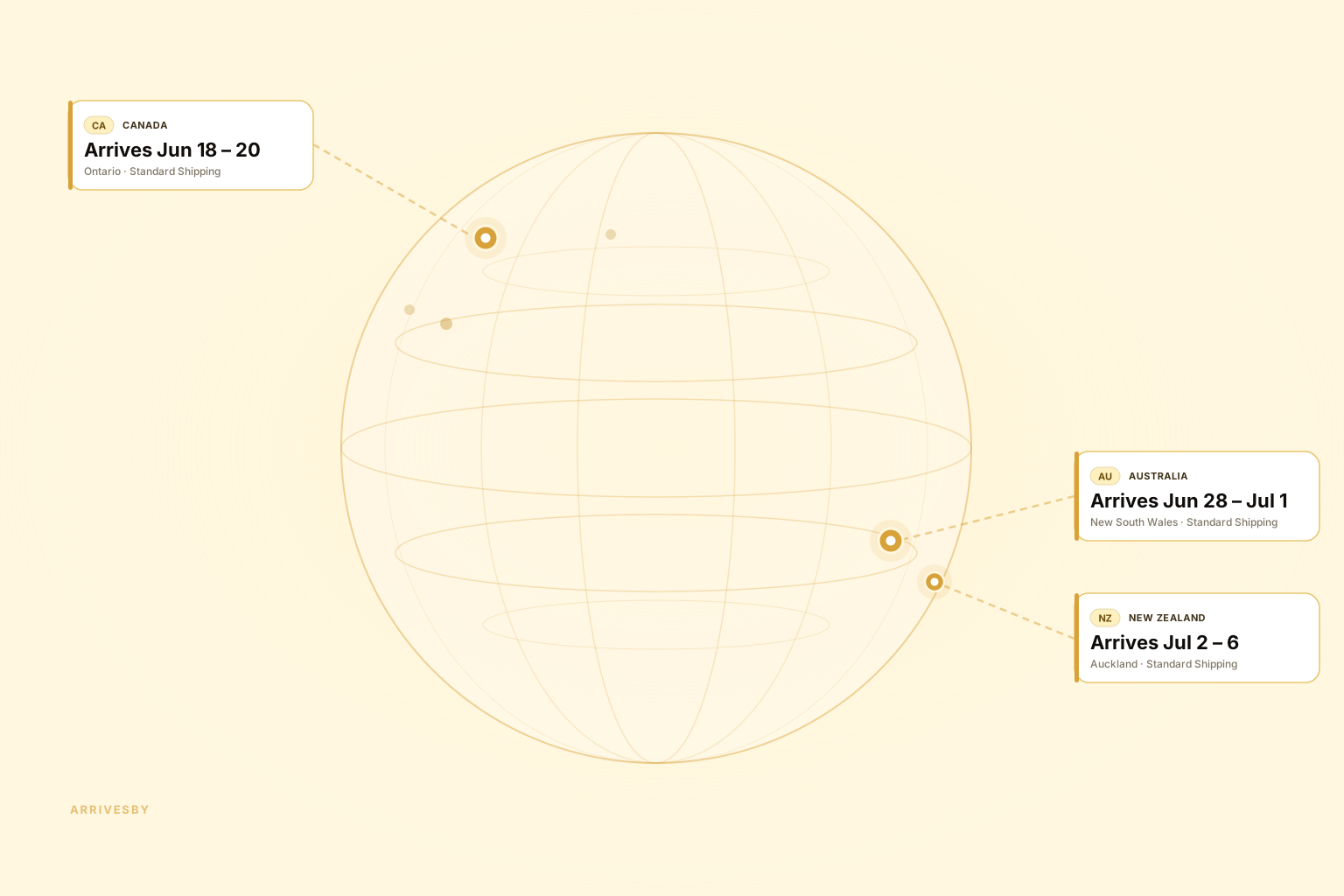
If you sell to shoppers in Canada, Australia, or New Zealand, you can now show them delivery estimates that reflect where they actually are — not a generic estimate written for your average customer.
ArrivesBy’s geolocation feature has always worked for US shoppers: detect the customer’s location from their IP address, look up their region, and apply the delivery rule that matches. Starting today, that same logic works for Canada, Australia, and New Zealand.
What this means for your store
When a Canadian shopper visits your product page, ArrivesBy now detects that they’re in, say, Ontario — and can show them an estimate that reflects Canadian shipping times, not your US domestic timeline.
The same applies to Australian shoppers (state-level detection) and New Zealand shoppers (region-level detection). In every case, customers can also enter their postcode manually if they want more precision or if auto-detection isn’t available.
This matters because a shopper in Toronto and a shopper in Texas have completely different expectations about when a package will arrive. Showing them the same delivery estimate is either wrong for one of them, or so vague it’s not useful for either.
How to set it up
If you already use geolocation rules for US customers, expanding to Canada, Australia, or New Zealand follows the same workflow.
Step 1: Create a shipping region
Go to Settings → Shipping Regions and click Add Region. Choose the country (Canada, Australia, or New Zealand), then select the provinces, states, or regions you want to target.
You can create one broad region (e.g. “All of Canada”) or break it down further (e.g. separate rules for BC vs. Ontario if your fulfillment timelines differ).
Step 2: Create or update a delivery rule
When creating or editing a rule, add a Shipping Region condition and select the region you just created. Set the delivery timeframe that applies to shoppers in that region.
Step 3: Done
ArrivesBy will start showing personalized estimates to matching shoppers immediately. Shoppers outside your defined regions will see whichever rule applies to them by default.
For more detail on setting up shipping regions and geolocation rules, see the Shipping Regions Guide.
Do I need to do anything if I already have rules set up?
If you already have geolocation regions configured for Canada, Australia, or New Zealand, they will start working automatically — no changes needed.
If you haven’t set up any regions for these countries yet, shoppers there will continue seeing your default (non-geo-targeted) delivery estimate until you add rules for them.
More countries coming
We’re actively working on expanding geolocation to more countries. If your country isn’t supported yet and it’s important for your store, reach out — it helps us prioritize.